Easy way to connect to a network printer.
Quick:
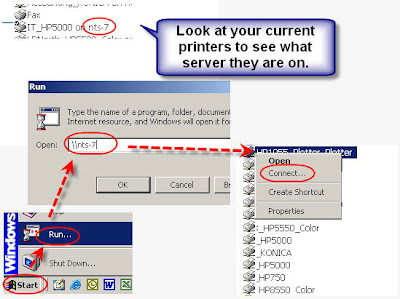
Get the print server name and printer name. Start, Run, file://NameOfPrintServer/, right click on the printer name, select connect.
Visual:
Learning:
So you are at work and you notice that there is a printer that you would like to use. The hard way is to click on Start and Setting, Printers, Add Printer, Look for the Printer, etc. etc.
The easy way it to first connect to the print server and right click on the printer you want to use.
The print server is the name of the computer where all of the printers for the network are configured. In a smallish company like ours there is only one.
If you don't know the name you can go to Start, Settings, Printers and look at one of your printers that is already installed. You should see your printers listed as "PrinterName on PrintServer". You want the PrintServer name.
Now to install a printer click on start, select run... and enter back slash back slash followed by the print server name (like file://PrintServer/). You will see a list of shared printers. Right click on the printer you want and select connect.
That is all there is to it. You should now see it in the list of available printers.

