Save the form to file, Test and fix problems.
Quick:
File Menu, Save As... .oft file. Form menu "run this form" to test. Layout menu "Tab Order..." to set tab ordering of fields.
Visual/Learning:
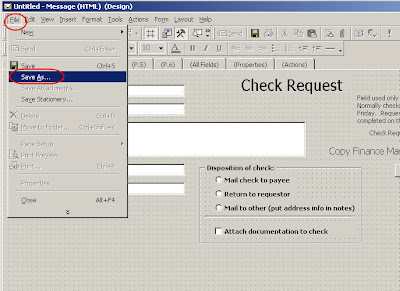
Go to the file menu and select Save As...
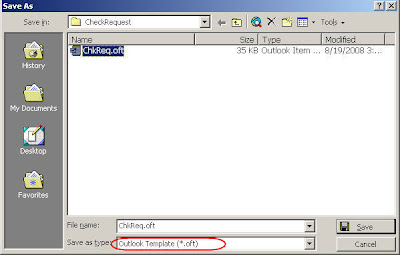
Save the form with an oft extension.
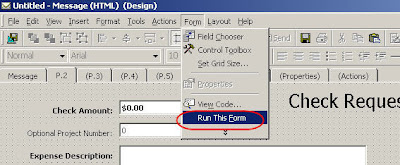
After saving the file run it and see what it looks like. On the Form menu select "Run This Form". This is just a quick way of testing the form without having to install it first in a forms folder.
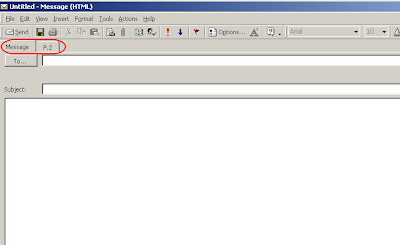
On the running form I have a couple of problems. The Message tab is showing so that needs to be hidden. Also the name of the tab that has my form is still named P.2 so that name needs to be changed. Now Click on the P.2 Tab.
The form looks pretty good but in trying to enter data I notice that the cursor does not advance through fields in the right order as I use the tab button. So that needs to be fixed as well.
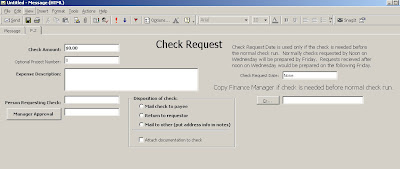
First of all I select the Message tab and uncheck the "Display This Page" option. Next I select the P.2 tab and select "Rename Page..." and rename the tab to CheckRequest.

To fix the tabs I select Layout, "Tab Order..." to open the Tab Order window.
 Here is where having used sensible names for the fields comes in handy. From just looking in this window I can see what fields are labels, text, and frames. It is also easy to tell which ones are the date, Check Amount, Project Fields, etc. All I need to do is start from the top and be sure that I am tabbing through the fields in the right order. I can use the Move Up and Move Down buttons to rearrange fields wherever I see the order is not correct.

The radial buttons and check box inside the frame control are controlled from a different Tab Order window. To change the tab order for the frame, right click on the frame and select "Tab Order..." from the pop up selection window.

