Issue:
You syncronize your palm device but the categories to not sync up on your hand held device.
Quick/Visual/Learning:
Found this link that was helpful.
-----Text From Link----
When I sync my Palm with Outlook, my categories don't transfer over (my todos are listed under the "unfiled" category). How do I get my categories in the handheld to match my categories in Outlook?
You will need to properly configure PocketMirror in order for your categories to transfer.
You will need to do the following:
1. Go to "PocketMirror Settings" by clicking “Start/Programs/PocketMirror/PocketMirror Settings”.
2. From the “Chapura Settings” screen, select the handheld user name you wish to edit, and click on the “Settings” button.
3. From the “Change Synchronization Preferences” screen, select the Outlook application you wish to edit, and click on the “Change” button.
4. From the "Preference Settings for Outlook …” screen, select the “Categories/Folders” topic.
5. From the “Categories/Folders” screen, select how PocketMirror will synchronize your categories/folders. The options are: "Handheld category = Outlook's 'Categories' field", "Handheld category = user-defined field 'PalmPilot' category", or "Handheld category = Outlook folder" (The last option, "Handheld category = Outlook folder" is a feature which is only available with PocketMirror 3.0 Professional.)
6. Exit PocketMirror, and synchronize.
-----End Text From Link----
Showing posts with label Mobile. Show all posts
Showing posts with label Mobile. Show all posts
Wednesday, March 4, 2009

Thursday, October 16, 2008
Wiping Blackberry Phone
Issue:
Here is how to wipe the data from a Balckberry Pearl phone. Probably works for other models as well.
Quick/Visual/Learning: Go to Options / Security Settings / General Settings, then click the Menu button and choose "Wipe Handheld". You will be asked to enter the word Blackberry to confirm you want to wipe the device.
Link to Blackberry Pearl Tips Site
Here is how to wipe the data from a Balckberry Pearl phone. Probably works for other models as well.
Quick/Visual/Learning: Go to Options / Security Settings / General Settings, then click the Menu button and choose "Wipe Handheld". You will be asked to enter the word Blackberry to confirm you want to wipe the device.
Link to Blackberry Pearl Tips Site
Saturday, September 13, 2008
Sync Exchange Mail on BlackJack Phone
Issue:
You want to syncronize your mail from your corporate Exchange server onto your BlackJack phone.
Quick:
Point BlackJack at Outlook Web Access (OWA) server if you have a commercial SSL certificate. Otherwise export your SSL certificate using Certificates Snap-in (local computer) from the OWA Exchange server and manually put it on the phone.
Visual:
Pointing BlackJack to OWA Server (Just an example please use your real OWA address)

Learning:
Seems like this is pretty stright forward on the BlackJack but a bit more work if you have a self generated Secure Sockets Layer (SSL) Certificate.
I was able to use our external name for Outlook Web Access to point the phone to the server. If you have a commercial SSL certificate this should take care of it. See the picture above.
Because our SSL certificate is self generated, not a commercial one, I had to export the public certificate from the Exchange server and send the certificate to the user. I was able to send the certificate to his phone via email since he had a webmail account that was already working on the phone. Once he got the certificate on the phone he just had to click on it and it installs. Now he can synchronize with the Exchange 2003 server.
To export the certificate get your systems administrator to do the following:
Exporting Certificate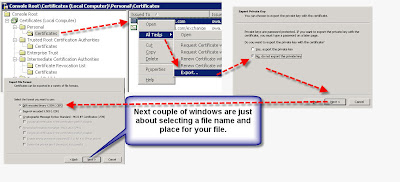 using MMC Snap-in.
Logon to the server where the OWA SSL certificates are installed. Add Certificates snap-in to the MMC. Select to manage certificates for the "Computer Account".
Under the folder in Certificates(Local Computer), Personal, Certificates; Select the certificate to export, right click, all tasks, export, "do not export the private key", DER encoded binary, give it a file name, click finished to export.
Now this exported file needs to be loaded on the phone. Again this should only be needed for self generated SSL certificates.
You want to syncronize your mail from your corporate Exchange server onto your BlackJack phone.
Quick:
Point BlackJack at Outlook Web Access (OWA) server if you have a commercial SSL certificate. Otherwise export your SSL certificate using Certificates Snap-in (local computer) from the OWA Exchange server and manually put it on the phone.
Visual:
Pointing BlackJack to OWA Server (Just an example please use your real OWA address)

Learning:
Seems like this is pretty stright forward on the BlackJack but a bit more work if you have a self generated Secure Sockets Layer (SSL) Certificate.
I was able to use our external name for Outlook Web Access to point the phone to the server. If you have a commercial SSL certificate this should take care of it. See the picture above.
Because our SSL certificate is self generated, not a commercial one, I had to export the public certificate from the Exchange server and send the certificate to the user. I was able to send the certificate to his phone via email since he had a webmail account that was already working on the phone. Once he got the certificate on the phone he just had to click on it and it installs. Now he can synchronize with the Exchange 2003 server.
To export the certificate get your systems administrator to do the following:
Exporting Certificate
 using MMC Snap-in.
Logon to the server where the OWA SSL certificates are installed. Add Certificates snap-in to the MMC. Select to manage certificates for the "Computer Account".
Under the folder in Certificates(Local Computer), Personal, Certificates; Select the certificate to export, right click, all tasks, export, "do not export the private key", DER encoded binary, give it a file name, click finished to export.
Now this exported file needs to be loaded on the phone. Again this should only be needed for self generated SSL certificates.
Subscribe to:
Posts (Atom)