First we made the mistake of buying Powerchute Business Addition. This will let you manage multiple USP devices but not multiple machines connected to each device.
Next after talking to APC support we found out that you can buy a APC device that is a kind of USB hub which will allow you to shutdown up to 8 machines. This solution seems a bit kludgy and you have to buy their hub and special USB cables for each connection, which gets a bit expensive.
The best option we found was to buy the APC Management Card. This card fits into the UPS expansion slot and gives you an Ethernet connection that you can use to manage as many machines as you want by IP address. Just plug an Ethernet cable from the UPS to your switch and install the client application on each of the machines you want to control.
The process and things we learned:
Don’t expect much from the documentation that comes with the management card.
You have to power off the UPS to install the card in a SMART-UPS.
Connecting a laptop to the UPS serial connection is the most reliable way of configuring the management card. Settings are 2400 bps, 8 data bits, no parity, 1 stop bit, and no flow control.
If you have ever used the USB port on the UPS you have to do the following procedure to get the serial connection to work:
1. Turn off the UPS
2. Unplug the UPS
3. Press and hold the off button for 10 seconds
4. Make sure the usb cable is unplugged.
5. Plug in and power it back up.
Default user is apc and the password is apc as well.
Once you are logged in you get a text menu:
Select 2 for Network and then configure the IP address under TCP/IP option.
I set ours to manual and gave it a static IP address.
Exit and logout to save your settings.
You can now setup the Management Card remotely with a browser.
Put the IP address of the UPS in the browser and use apc for both the username and password.
Next add the client machines you want to be able to power down.

Next you need to set the Authentication Phrase. You may be able to just use the default but I did not try this. 
Download the client software to install on each client machine.
http://www.apc.com/
Select Software & Firmware on the home page.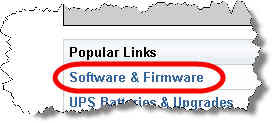

Download the client software to install on each client machine.
http://www.apc.com/
Select Software & Firmware on the home page.

Pick "Software Upgrades - PowerChute Network Shutdown" form the list 

Click on Continue 

Find your client operating system and click the continue button next to it  .
.

To do the download you need to login using apc123 with password apcapc (If this does not work call APC Support 800-555-2725 for new login)
Finish downloading clients for each of the needed operating systems.
When you install the client on each machine you will need to have the IP address of the management card so that you can point the client to it and the Authentication Phrase
Finish downloading clients for each of the needed operating systems.
When you install the client on each machine you will need to have the IP address of the management card so that you can point the client to it and the Authentication Phrase
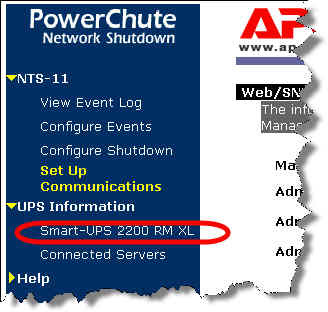
Install the client on each client machine and point them at the UPS' IP address. You will know it is working when you open up the client machine software and you can see the UPS listed like in this picture.